
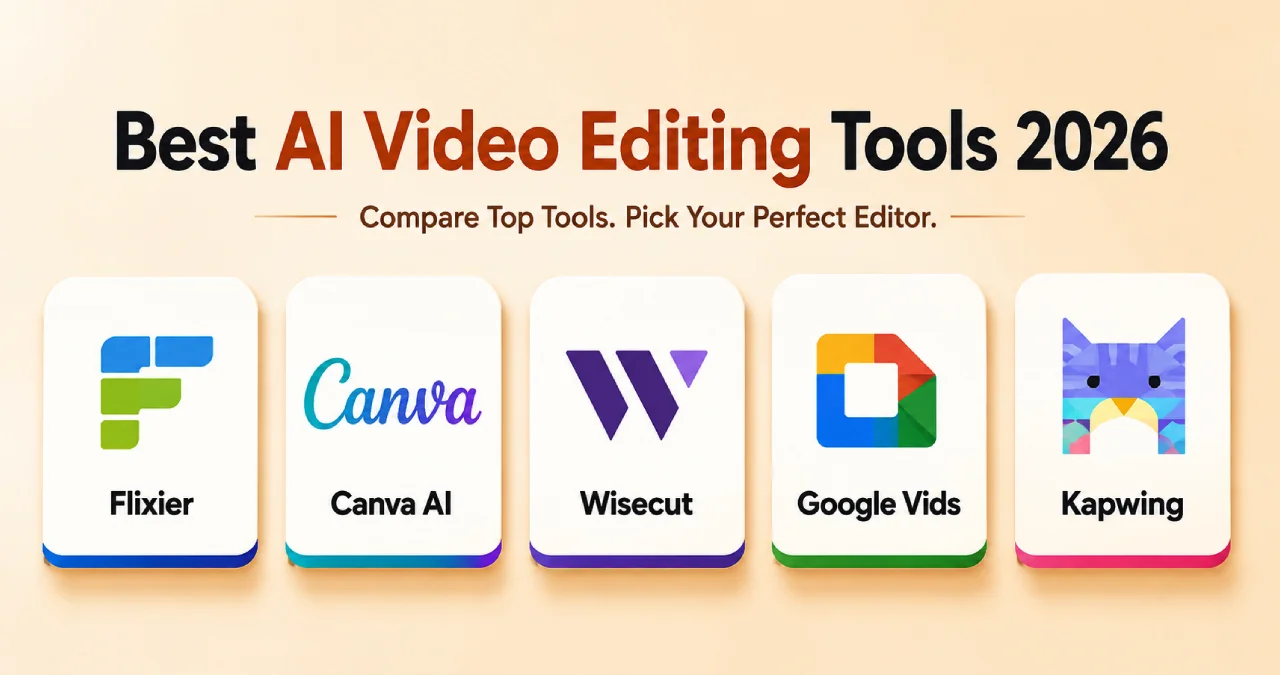

AI has completely changed the way videos are created nowadays. The editing workflow has changed. Filmmakers, marketers and creators no longer spend hours on routine activities. This includes deleting dead air from a recorded video. The advanced software helps with automatic editing of transcripts. You might be creating video in short or long format. The perfect AI editor can save several hours of your effort. Here are the best AI video editing tools of 2026. The popular AI video editing tools are Flixier, Canva, Wisecut, Google Vids, and Kapwing.
Now, we are going to discuss the features, pros, cons, and pricing of the best AI video editing tools.
Table of Contents
Flixier – Top Cloud-based AI Video Editing Tool
Flixier is an AI-powered, cloud-based video editor that works in your browser.
Features of Flixier
- Includes cropping, adding, cutting and glitch effects.
- Add audio, text and music to the video.
- Split, rotate and enhance a video.
- Record Zoom, webcam, and screen.
- Generates subtitles and offers audio translation.
- Changes PPT to video and creates a transcript of the meeting.
Pros and Cons of Flixier
| Pros | Cons |
| Offers cloud processing | Not good for professional editing |
| No need to install anything. | Advanced tools in paid plan |
| Holistic toolkit | Costly tool |
| Live collaboration | Updates create technical problems |
Pricing of Flixier
| Plan Name | Price |
| Free | $0 |
| Starter | $8.50/seat/month |
| Creator | $17.44/seat/month |
| Business | $30.85/seat/month |
Pricing changes frequently; you should check this website.
Key Use Cases for Flixier
Remote teams, social media managers and content creators for live collaboration, voiceover, auto-subtitle, product demonstration, and reusing long-format videos.
Platform for Flixier
Linux, Mac and Windows.
Test Results
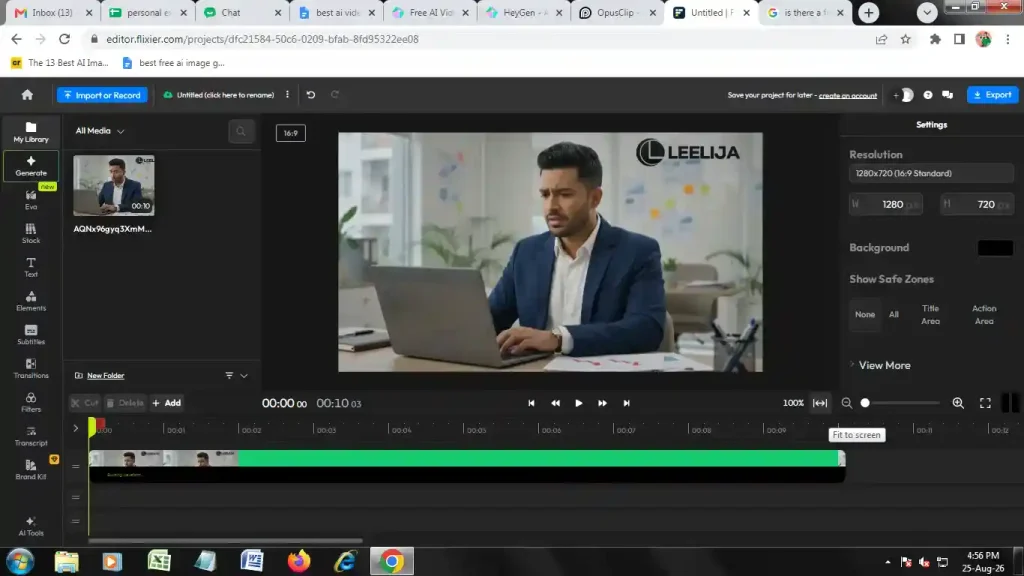
For Flixier, we conducted a test on a video of 10 minutes duration. Our goal is to check the AI editing workflow. We need to examine the subtitle writing.
We need to know the speed of processing the video. Then, we checked the overall quality of the output. The processing of the video was complete in 1 minute.
We found the AI output was generated in seconds. We found issues like browser cache and delay in syncing. We got in touch with customer care and finally they solved the problem.
Our Examination:
- Test video: 10-minute video
- Processing time: Around 1 minute
- Subtitle generation: The subtitles were clear.
- Output quality: The video looks professional as the AI editor had filled in the missing part.
- Ease of use: Ordinary
- Manual editing: Small changes
- Screenshot:
Canva AI – Top AI Video Editing Tool for Resizing and Conversion
Canva AI is an AI video editing tool that creates presentations, documents and graphics from ordinary prompts.
Features of Canva AI
- Converts videos to MP4.
- Offers online recording of video.
- Resizes the video.
- Converts the video to GIF.
- Turns an image into a video.
- Adds transitions to a video.
Pros and Cons of Canva AI
| Pros | Cons |
| Quick content creation | Lack of creativity. |
| Chat in a conversational tone. | Needs manual editing. |
| Changes the tone and color. | Free account controls the number of AI creations. |
Pricing of Canva AI
| Plan | Monthly | Annual |
| Canva Free | $0 | $0 |
| Canva Pro | $12.99 | $119.99 |
| Canva for Teams | $14.99 | $149.90 |
Pricing changes frequently; you should check this website.
Key Use Cases for Canva AI
This tool is suitable for marketers, teachers, content creators, and businessmen. It is good for content creation, visual design, presentation and branding.
Platform for Canva AI
Suitable for mobile, laptop and desktop.
Test Results
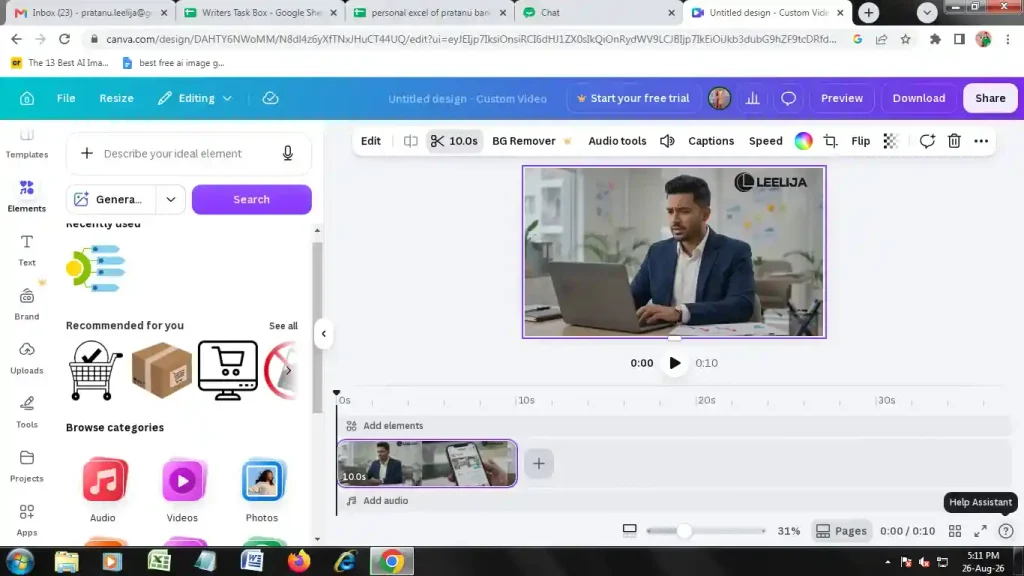
We checked Canva AI in a 10-minute video. We explored the AI editing workflow. We observed the quality of subtitles and the processing speed.
We wanted to check the output quality. It took 2 to 3 minutes to complete the video processing. The AI output was created in 3 minutes.
We examined the result for processing and found some technical issues. There were server outages for a few minutes. We found issues with the browser, which were solved after updating the browser.
Our Examination:
- Test video: 10-minute video
- Processing time: 2-3 minutes.
- Subtitle generation: The subtitles were quite accurate.
- Output quality: Moderate
- Ease of use: Simple
- Manual editing: Modifies the different elements after the AI agent stops working.
- Screenshot:
Wisecut – Top AI Tool for Controlling Background Noise
Wisecut is an AI video editing tool that converts a raw video to complete content automatically.
Features of Wisecut AI
- Reduce the background noise.
- Decrease the silence in the video.
- Add a title.
- Use background music.
- Apply auto reframe.
Pros and Cons of Wisecut AI
| Pros | Cons |
| Removes silence automatically | Absence of advanced regulation. |
| Adds free royalty-free music. | Takes time to process a video |
| Changes the text transcript in the video. | Shows basic changes in fonts. |
Pricing of Wisecut AI
| Plan | Monthly | Annual |
| Free | $0 | $0 |
| Starter | $33/month | $23.25/month |
| Professional+ | $118/month | $83.25/month |
Prices change frequently; to see the latest price, check the website.
Key Use Cases for Wisecut AI
Teachers, podcasters, YouTubers, and content creators use it to remove silence, reuse long content, automate improvements, and publish on autopilot.
Platform for Wisecut AI
Laptop and desktop.
Test Results
We checked Wisecut AI in a video for 10 minutes. We wanted to examine the AI editing workflow along with the subtitles. We would like to know the processing speed of the video.
We checked the output quality. It finished the video processing in 10 to 15 minutes. The time for completing the AI output is nearly 15 minutes.
We examined the outcome. We found that the workflow showed short clips. We have come across some technical issues like server overload, limitations in file size, and standard of audio quality.
Our Examination:
- Test video: 10-minute video
- Processing time: 10-15 minutes
- Subtitle generation: Good transcription but requires manual checking.
- Output quality: SEO-enabled video clips.
- Ease of use: Simple for professionals and beginners.
- Manual editing: Modify the text through text prompts.
- Screenshot:

Google Vids – Top AI Video Editing Tool for Image Animation
Google Vids is an AI-powered video editing and creation platform within the Google Workspace for group activities in the office.
Features of Google Vids
- Edit video through text.
- Create animations of images.
- Produce videos of around 30 minutes duration.
Pros and Cons of Google Vids
| Pros | Cons |
| Integrates with slides, docs and Google Drive | A paid plan is essential for advanced tools. |
| User friendly | Export is limited to a resolution of 1080p. |
| Offers voiceover, scriptwriting and storyboarding. | Video editing works on desktop. |
| Online collaboration. | Absence of filters and color editing. |
| Editing through transcript. | Small delay in the lip sync. |
Pricing of Google Vids
| Plan | Monthly Charge |
| Free | $0 |
| Starter | $6.30/month |
| Standard | $12.60/month |
| Plus | $22/month |
| Enterprise Plus | $35/month |
Pricing changes quite often, so it is advised to check the website.
Key Use Cases for Google Vids
Google Vids helps with screen recording, AI creation, group work and changing slides. It is meant for sales professionals, business trainers, teachers, content creators and business owners.
Platform for Google Vids
Mobile and desktop.
Test Results
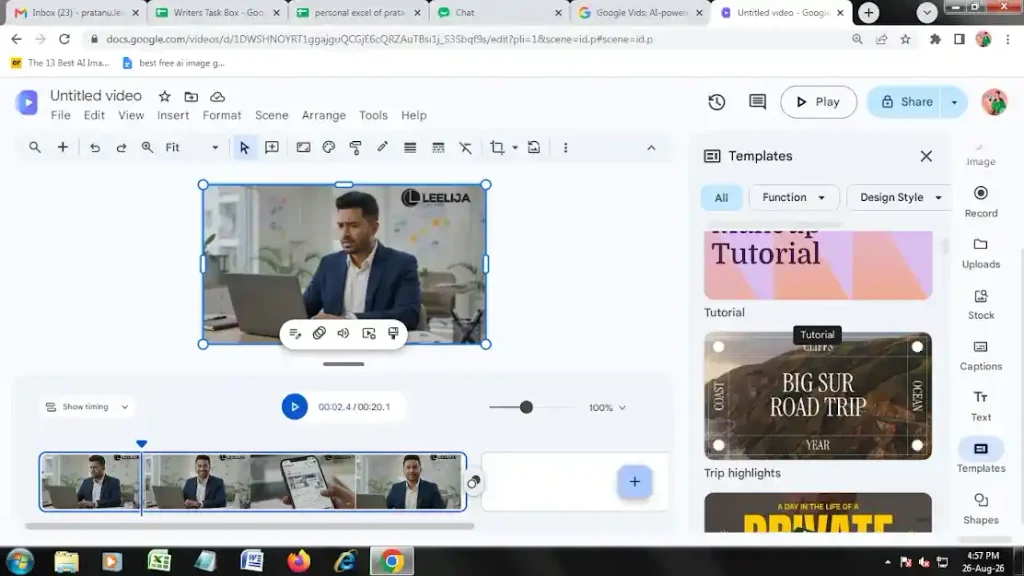
We examined Google Vids in a video whose duration is 10 minutes. We checked the editing workflow with the help of AI. We need to know the processing speed along with the quality of subtitles.
We examined the standard of production. It processed the video within a few minutes. It took one hour to finish the total AI production.
It improves the precision through timeline zooming and object tracking. The workflow includes the creation of an idea, scene-related asset organizing, personalized workflow and live collaboration.
There were technical issues like reaching the generation limit, errors in processing and problems with the browser extension.
Our Examination:
- Test video: 10-minute video
- Processing time: Within a few minutes.
- Subtitle generation: Auto-generated subtitles.
- Output quality: Videos had 1080p resolution with 24 fps.
- Ease of use: User-friendly interface.
- Manual editing: Storyboard is based on scenes and we can change the text easily.
- Screenshot:
Kapwing – Top AI Tool for Dubbing and Voice Cloning
Kapwing is an AI video editing and creation platform using a browser, which allows for video production and editing through automated tools and text prompts.
Features of Kapwing
- Helps in creating scripts and AI videos.
- Offers fundamental editing within the browser.
- Changes long videos to brief clips for social media.
- Helps in voice cloning and dubbing using AI.
- Adds subtitles automatically.
Pros and Cons of Kapwing
| Pros | Cons |
| Works without installation. | Free plan shows the presence of a watermark. |
| User-friendly platform | Large files make the editor slow. |
| Removes background and text-to-speech | Paid plan is quite costly for small businesses. |
| Presents comments and shared work areas. | Internet must be available for work. |
Pricing of Kapwing
| Plan | Monthly | Annual |
| Free | $0 | $0 |
| Pro | $24/month | $16/month |
| Business | $64/month | $50/month |
Enterprise | Contact sales manager | Contact sales manager |
Price may change, so it is important to check the website.
Key Use Cases for Kapwing
This AI tool is good for teams, marketers and content creators for repurposing short videos, editing using a transcript, and adding captions automatically.
Platform for Kapwing
It is perfect for desktop and laptop.
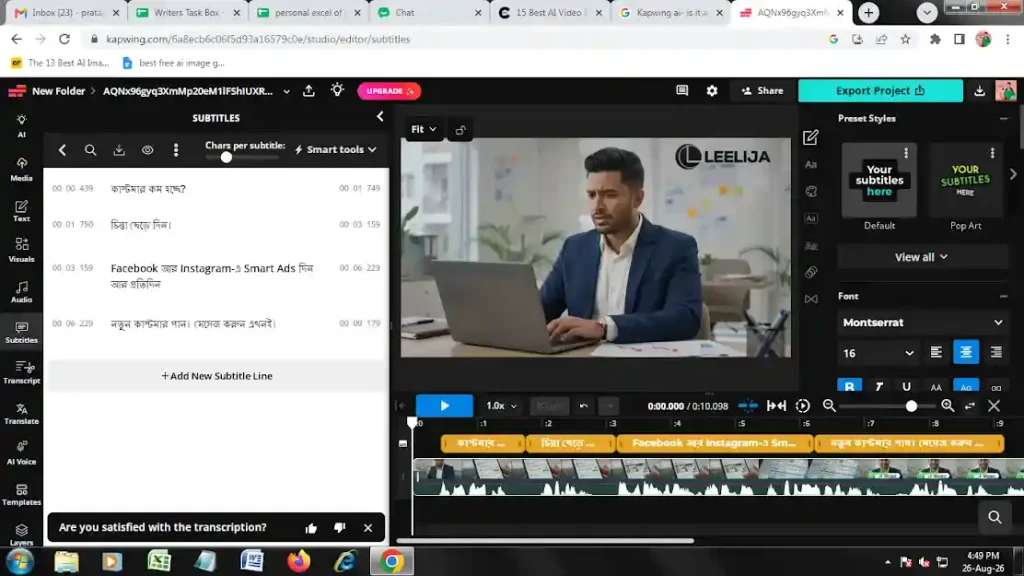
Test Results
We checked Kapwing by editing a video of 10 minutes duration. We examined the AI-enabled editing workflow. We observed the subtitles along with the processing speed.
We found that the processing time of the video is 10 minutes. It took around 60 to 90 seconds for the complete AI output. We examined the result to know the style and accuracy.
We came across some technical glitches in Kapwing and they are desync in audio and visuals. Sometimes the rendering screen is stuck.
Our Examination:
- Test video: 10-minute video
- Processing time: 10 minutes
- Subtitle generation: High-quality subtitles.
- Output quality: 1080p for standard and 4K at pro level.
- Ease of use: Without installation and transcript-related editing.
- Manual editing: One can edit manually with the timeline editor of Kapwing Studio.
- Screenshot:
Comparison of Best AI Video Editing Tools 2026
| Tool | Core AI facility | Best for | Platform | Starting price | Free plan |
| Flixier | Cloud-oriented AI rendering | Instant cloud joint initiative | Web -oriented | $8.50/seat/month | Yes |
| Canva | AI video editing | Graphic design | Mobile, desktop and laptop. | $12.99/month | Yes |
| Wisecut | Reduces silence in video | Teachers | Laptop and desktop. | $23.25/month | Yes |
| Google Vids | Text-based video editing | Sales professionals | Desktop and mobile | $6.30/month | Yes |
| Kapwing | Browser-based editing | Content creators | Laptop and desktop. | $24/month | Yes |
Final Verdict
Let us talk about the final verdict on the best AI video editing tools 2026 below.
- Flixieri: This is a cloud-based platform for live collaboration.
- Canva AI: For graphic design and branded marketing visuals or social media posts
- Wisecut AI: Record a video with a talking head and save valuable time for the manual rough cuts.
- Google Vids: The group works on Google Workspace, and the creator has to create professional videos for a project.
- Kapwing AI: A holistic browser-based editor to divide long media and create instant B-roll.
Frequently Asked Questions
How do AI video editing tools assist us in script writing?
The tool can write scripts if the user offers it the concept and the form of script you need. It assists in generating ideas for the new draft.
Is it possible for AI video editors to remove the background automatically?
AI tools have the power to delete the background in a webcam. It removes the background of the image at the time of recording. It saves time for editing by hand.
Which AI video editing tool is best overall in 2026?
Flixier is the best AI video editing tool in 2026 for collaboration in the cloud and a holistic toolkit, but Canva AI has been the top choice for design-oriented content. Google Vids is great for teams in the Google Workspace.

[…] Useful editing tools […]