


To move from ChatGPT to Claude, go to claude.ai and sign up for a free account. Then start chatting right away. In most cases, your settings feel familiar after a short time.
If you use ChatGPT often to plan an article, outline a blog, or brainstorm content ideas, this switch may feel harder. You might need time to adjust. However, if you are only trying to transfer the important preferences and conversations, it can be easy to migrate. In this Ainewsjournal blog, I am trying to cover this area, which outlines the steps on how you can move from ChatGPT to Claude.
Table of Contents
Why Switch To Claude From ChatGPT?
As a creative writer, I have used ChatGPT for a year, and it has helped me in structuring and brainstorming ideas in so many ways. But as soon as Claude AI hit the market, I was thrilled by its writing capabilities, multiple models, and useful features. When I searched for it, I found that it has 4 different models to make our writing professional. Models like Sonnet 5 and Haiku 4.5 are the exact models for improving my write-ups.
More than that, I have compared my ChatGPT results with the Claude results, and the main reason which bother me to change generation of AI assistant from ChatGPT to Claude is that Claude’s responses feel more natural and human. The results are authentic, sourced from high-authority sites, and perfectly fit a particular workflow. Trying new AI software is a benefit for my project, but the real challenge is that when I prepared my mind to switch from ChatGPT to Claude, I felt a little confused about how I would transfer my data to Claude. Now, below I am going to share the steps the way I used to switch my data from ChatGPT to Claude so that you can also do that. Keep following the steps.
Read more: Pros and Cons of Claude.
How to Switch From ChatGPT to Claude?
Now, while shifting from one AI chatbot to another, you may think you need to transfer all your data. But it is not necessary to transfer all your data; rather, a better approach is to move the information and data that are useful for future work. For a better understanding, I am sharing the process in steps.
Step 1: Create your own Claude account
Well, before you start the transfer, all you need to do is open your Claude account. Go to the official website of Claude and sign in with your Gmail account or create your own one. Once it’s ready, check out its options and features to see whether they are useful or not.
Step 2. Identify Transferable materials
Asking or searching for multiple things in ChatGPT may be useless in Claude. So, better to make a list of conversations or the inquiries that you can ask frequently. It should look like this,
- Writing preferences
- Frequently used prompts
- SEO requirements
- Ongoing projects
- Important research notes
- Content guidelines
- Preferred tone and style
- Frequently used formats
- Useful instructions
- Important conversation summaries
As I am a creative writer, my common queries will be FAQs, structure, drafting, meta descriptions, keyword usage, and heading creation. These are the queries that I frequently ask ChatGPT so that I can get an idea for drafting my blogs and articles.
Step 3. Take help from other AI to create a note for migration
If you are still unsure what you should include in your Claude memory, ask ChatGPT to prepare a note that includes your needed preferences. Claude helps me most if it follows this list.
1) What I need from the assistant
- Write a clear, detailed recap of the points that help Claude work well with me.
- Pull the details from our earlier chats only.
- Keep it in a safe, non-private context.
2) What to include
- Notes about how I like to write.
- Tasks I often request again.
- The way I want the final text to look and be laid out.
- Any work I am still doing.
- Rules and prompts I keep reusing.
- Extra background that is not personal or private.
3) How to present it
- Use a tidy structure with clear headings.
- Keep sections short so I can skim fast.
- Format it so I can copy and paste into Claude with no extra edits.
4) Limits to follow
- Do not add new claims that we never said.
- Stick to what fits our chats.
- Do not include private or sensitive details.
If you follow the items above, the result should be ready for me to paste into Claude.
Step 4. Transfer writing preferences
If you are a writer and your preferences are mostly related to writing, then only transfer your essential documents. You can follow these two methods.
Option A: Export and keep references
Use ChatGPT. Open Settings, then go to Data controls. Choose Export data. This lets you download a full copy of your chat history. You can save it as a backup for yourself. Or you can open single chats and copy only the sections you want to keep.
Option B: Upload useful preferences
Put your full export into Claude. Then pick out the parts that actually matter. Focus on the long writing work, the coding notes that help you, and the key client info. Upload those items as reference files in a Claude Project.
Step 5. Recreate and Transfer Useful Prompts
One of the best ways to migrate your writing prompts is to recreate them like “create useful FAQs, draft me an article regarding my keyword, how can I improve my writing for best ranking” when you are using your new AI tool, Claude. Use the keywords properly and avoid the repetition of keywords. If you have large spreadsheets or documents that cannot be copied and pasted within minutes, keep a copy of the files for each project.
Can I Transfer Entire History from ChatGPT to Claude?
Like me, many users have a common question that has a simple answer: “No”. If you have been using ChatGPT for a long time, then the memory is also huge. And it is not possible to store the history data automatically in Claude. You’d better save the old data and transfer it slowly. Remember that you need to transfer only the data that is useful.
4. Simple Tips for a Smooth Transition
Switching from ChatGPT to Claude is not so difficult if you have the exact knowledge and the capabilities of brainstorming ideas. Let’s make it simpler for you with a guide that can help you to figure out the problem.
1. Create a Claude account.
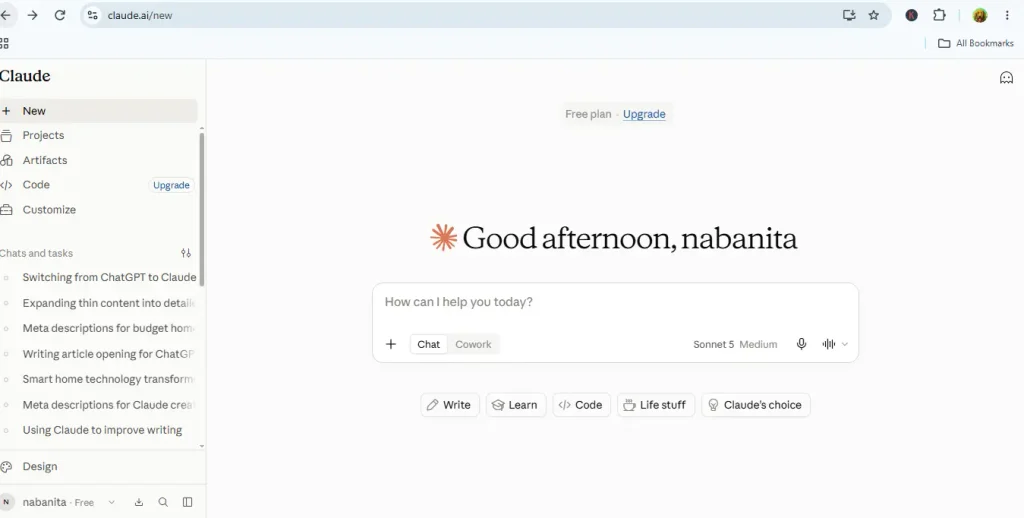
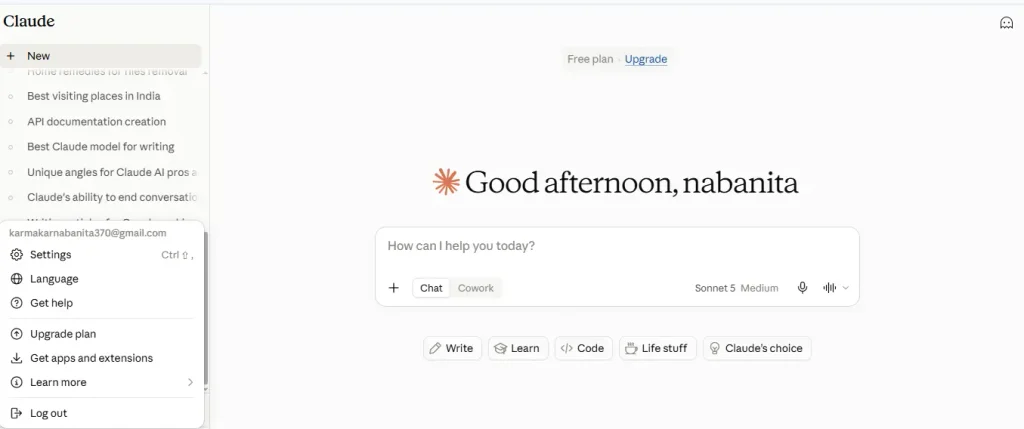
2. Go to settings and choose capabilities.
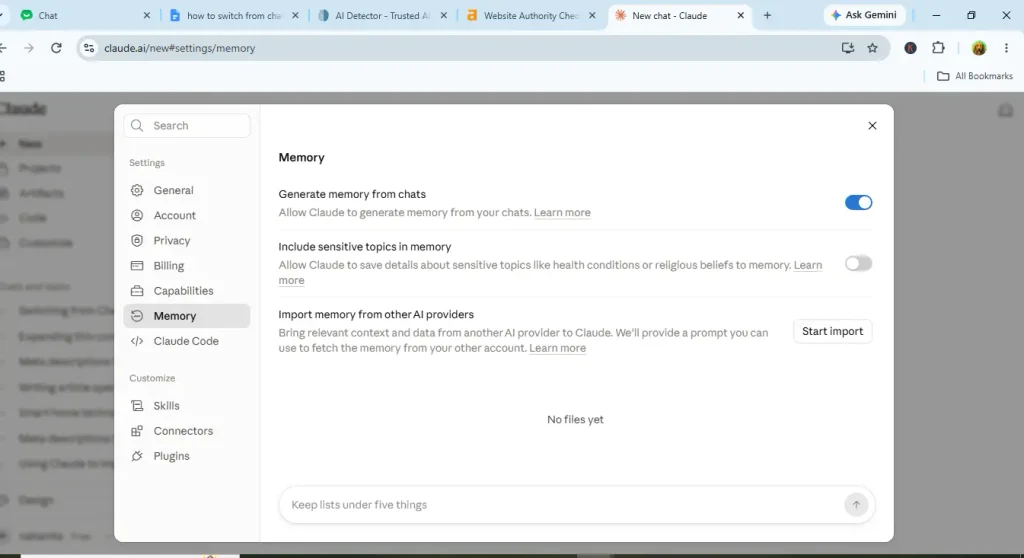
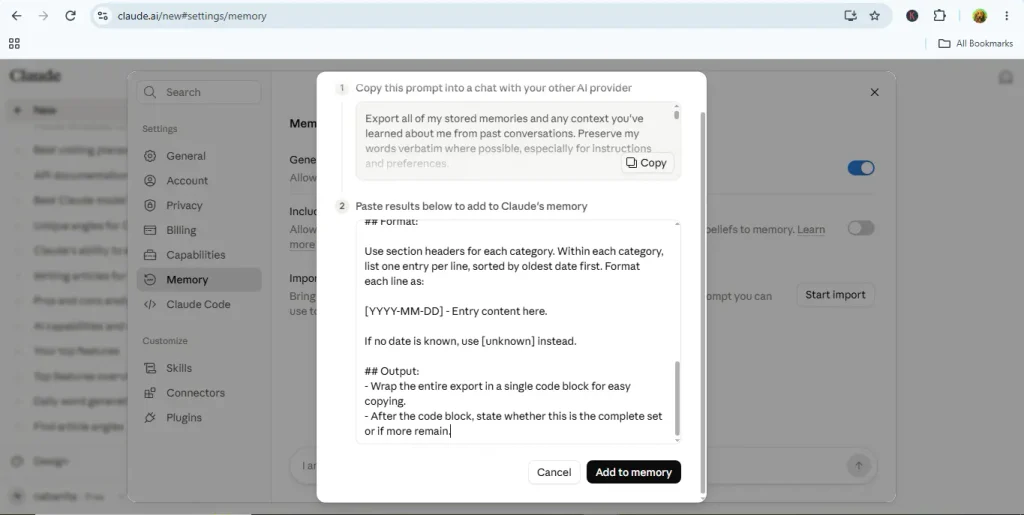
3. Click on Memory, copy and paste the data, and click on Start import.
4. Now import the data into Claude’s memory.
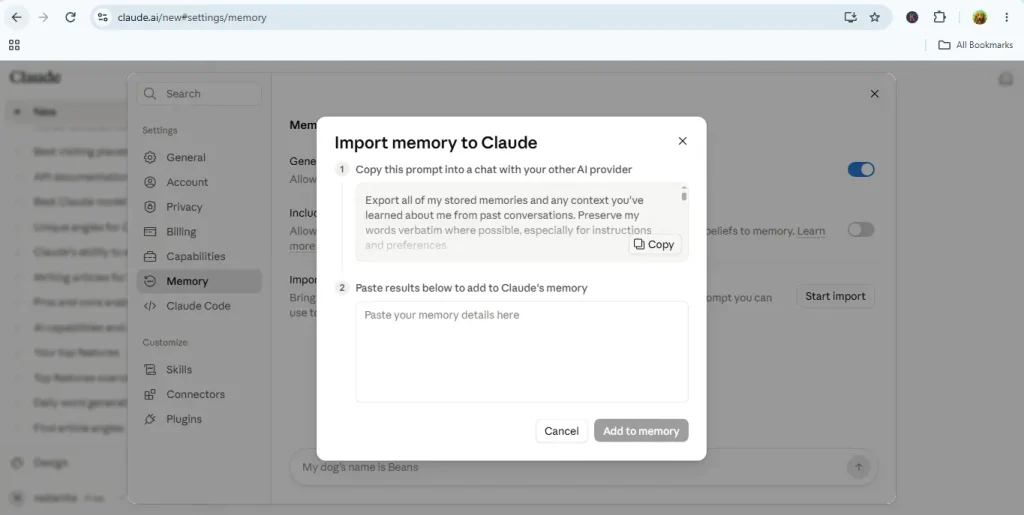
5. Upload the imported data and click on Add to memory.
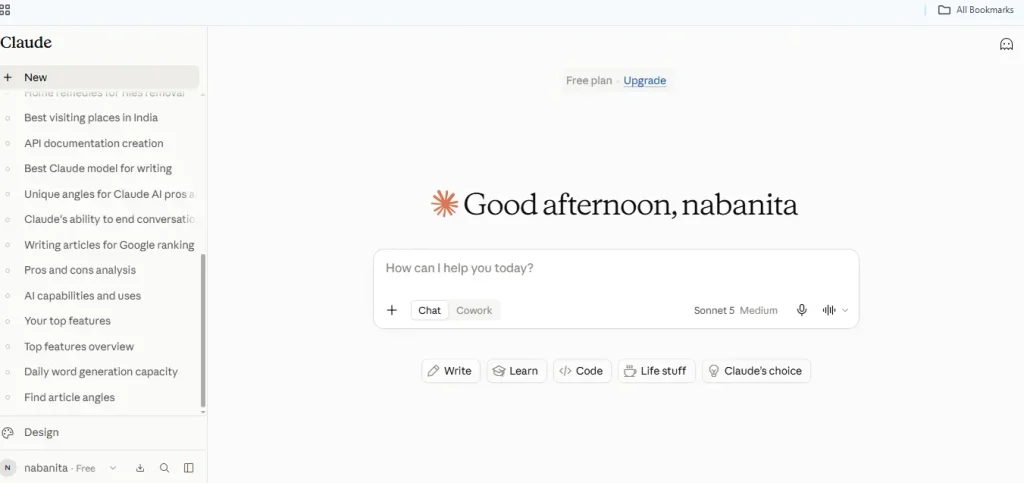
6. Start using Claude.
| Useful Note: This feature is only available for the free trial; it is only useful for the paid or Pro version. |
Conclusion
Once you get to know the process, you will be able to use the new-generation AI assistance, Claude. The differences between using ChatGPT and Claude will be clear to you. I have found this way to be very easy, so I recommend trying this method for a better career and experience in your writing journey.
FAQs
What is the best way to switch from ChatGPT to Claude?
ChatGPT → Export/prepare important information → Claude → Import Memory → Upload important files/chats → Recreate your projects → Start using Claude.
Is it worth it to switch from ChatGPT to Claude?
Yes—but I wouldn’t recommend completely switching from ChatGPT to Claude yet, especially if you use AI mainly for SEO articles, research, editing, and content planning.
Is ChatGPT losing to Claude?
Not exactly. But Claude has become a much stronger competitor in 2026. The AI race is no longer a situation where ChatGPT clearly dominates every category.
Why are people leaving ChatGPT for Claude?
Yes, there is a real shift toward Claude among some users, but saying that people are broadly abandoning ChatGPT would be an exaggeration.


