
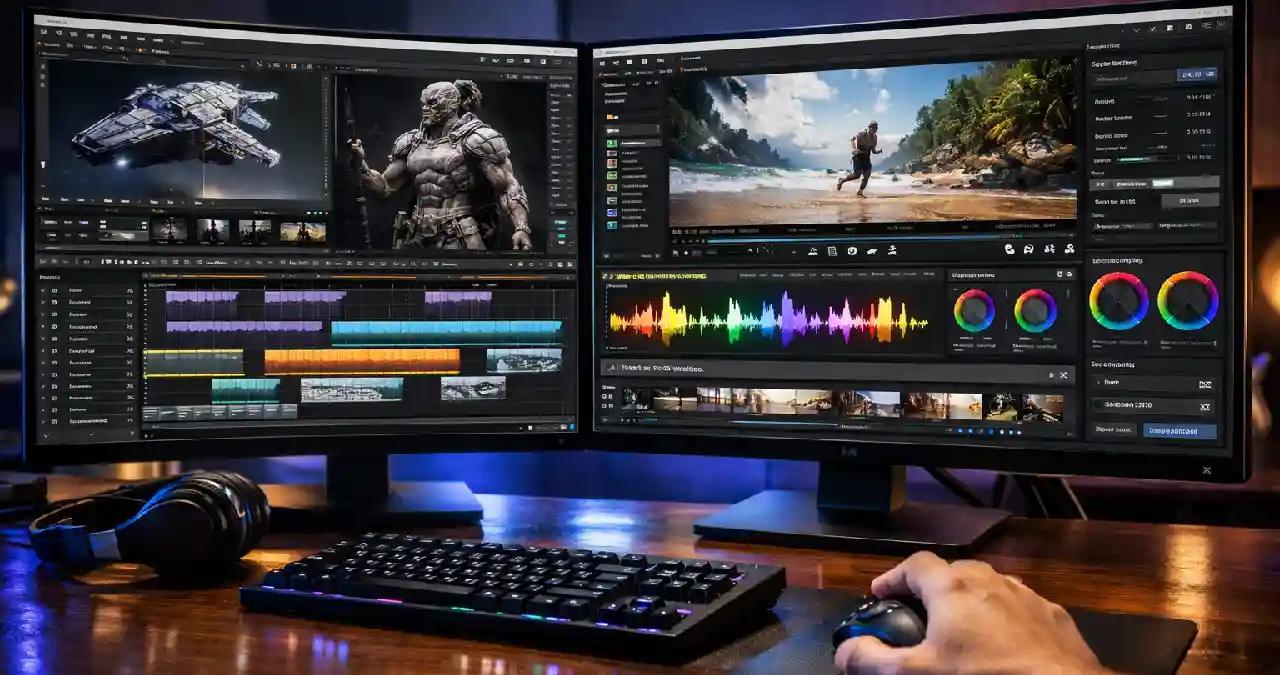

Free AI tools automate the video editing process, which helps in generating creative effects in video. Some creative effects are rendering, modeling and sculpting. A person can use AI music generation and turn an AI video into SFX. When the watermark is not present, you can get a product without any branding. An AI tool without a watermark can be used for video editing. It is used for cutting, rotating, and trimming a video. Free AI tools for video editing are Flexclip, Blender, Openshot, Shotcut, and VideoPad.
In this AInewsjournal guide, you’ll discover the free AI tools without watermark for video editing.
Carry on reading the blog till the end.
Guide to 5 Free AI Video Editing Tools without Watermark
The video editing tools without a watermark using AI are as follows:
1. Flexclip
Flexclip is a video editing platform with excellent clips with AI text to image, AI photo editor, audio converter, video merger, and video trimmer.
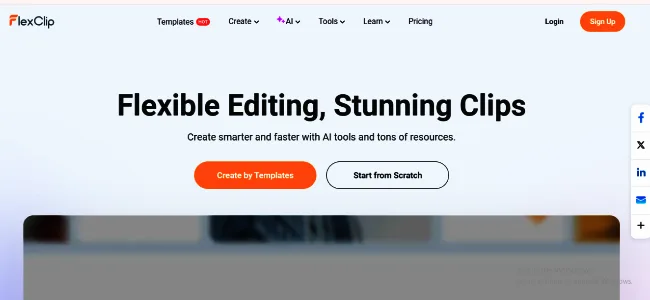
Perfect for Devices: Laptop, Mac, and PC.
Features:
- One can create different types of videos like business, lifestyle and social media.
- The AI tool can create an AI image to video.
- There are AI video generators and AI text-to-video.
- The tool has the power to form an AI pdf to a video and an AI product URL to a video.
- The AI tool can produce AI voice cloning and AI video to SFX.
- This tool is an excellent AI music generator and AI sound effect.
Pros
- There are a lot of templates.
- It is user-friendly.
- Various effects and text styles are present.
- One can edit quickly.
- Videos look professional in nature.
Cons
- There is a problem in audio selection.
- It is important to have a high-speed internet connection.
- It is tough to learn the software.
Rating: Based on the reviews of Trustpilot, the rating is 4.5/5.
2. Blender
Blender is an AI video editing software for sculpting, modelling, animating, rigging, drawing, etc.
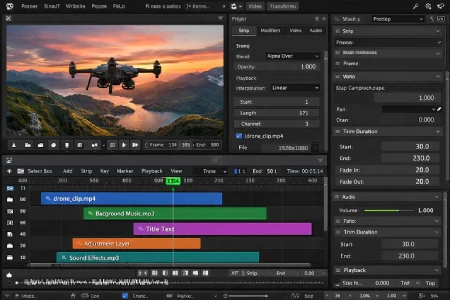
Perfect for Devices: Linux, Mac and Windows
Features :
- Rendering, modeling and sculpting features are great.
- There is a wide range of modelling toolsets in Blender.
- One can organise different levels of digital production with the help of sculpting tools.
- Animation and rigging features are used for stunning short videos.
- The creator can form a 3D environment with the story artist.
- VFX helps in object motion tracking.
- The video maker can create a simulation using tools like MantaFlow and Bullet.
- The tools for video editing are truly great.
Pros
- Anybody can access the software as it is without licensing fees.
- Offers sculpting, 3D modelling, video editing, and rendering.
- Presents different types of plugins and community-based news.
- The physical accuracy has a high standard.
- There is integration with an AI tool and advanced features.
- Ideal for creating 3D puppets.
- It offers a smooth workflow.
- It is good for CAD modelling.
Cons
- The interface is quite complicated.
- Big studios do not use Blender even though it is quite popular.
- If the hardware is old, the software may function slowly.
- Original AI features are not suitable in comparison to its competitors.
- Not good for new modellers.
- A large number of hotkeys makes it quite confusing.
- There is a problem with the autosaving feature.
Rating: Based on the reviews of Software Advice, the rating is 4.7/5
3. OpenShot
OpenShot is the perfect tool for new professionals who love software from open source.
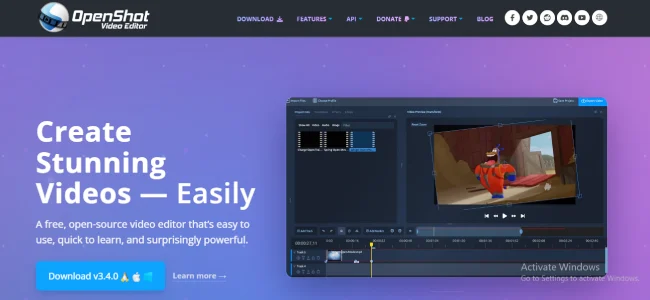
Perfect for Devices: Linux, Windows, and MAC.
Features:
- The software helps in creating videos in different formats.
- It offers a strong keyframe animation framework.
- There is a desktop integration offering drag and drop support.
- There are endless layers or tracks in the project.
- The video AI tool is allowed to take part in cutting, rotating, snapping, and trimming a video.
- One can create more than 400 transitions in OpenShot.
- It offers image overlay and compositing.
- The vector title templates are more than 40.
- One can create 3D animated titles.
- The video editing timeline has advanced features.
Pros
- Sophisticated tools with endless tracks for editing.
- This is great for beginners.
- There are view options in the advanced and simple levels.
- The output has a remarkable standard.
- It is an open source and free software.
Cons
- There are no high-level features for audio and video editing.
- Lack of pre-made templates for video creation.
- Software’s performance does not show stability.
- Quite often, there is a problem in exporting videos.
- After using effects, there is some lag in the software.
- The users fail to work on several videos at a time.
Rating: Based on the review of users in Capterra, the rating is 4.3/5.
4. Shotcut
Shotcut is the perfect AI video editing tool for the effects of chroma key and green screen.
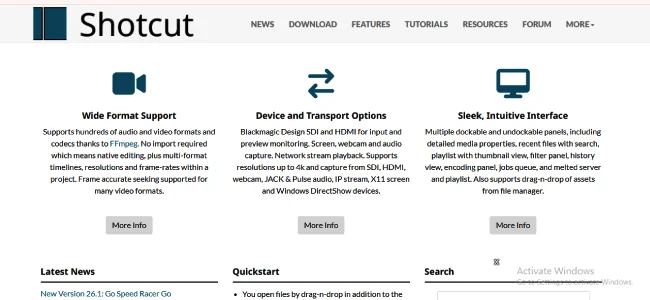
Perfect for Devices: Linux, Max, Windows.
Features:
- The AI tool supports a wide format.
- This is ideal for capturing by webcam.
- It offers audio capture.
- It functions for 8K and 4K resolution.
- There are generators for counter, noise, text and colour.
- Linear colour processing and batch conversion are present.
- Audio features include audio filter, volume control, tone generator, and pitch compensation.
- There is audio mixing for every track.
- Among the audio filters, some features are low pass, noise fade, track audio fade, etc.
- There is a wide range of video filters and 360-degree video filters.
Pros
- It can take out audio from videos easily.
- The interface is clean.
- It is an open-source software.
- Modifiable panels.
- User-friendly navigation.
- Assists several video and audio formats.
- The size of the program is small.
- One can import video files easily.
Cons
- Export is missing for the social media websites.
- Software belongs to the intermediate category, which is time-consuming to learn.
- Colour correction is absent.
- The library is small.
- The text feature is not user-friendly.
- The media cannot be kept within folders.
Rating: Based on the reviews of Software Advice, the rating is 4.5/5.
5. Videopad Video Editor
Videopad is ideal for people who do not have any experience in video editing.
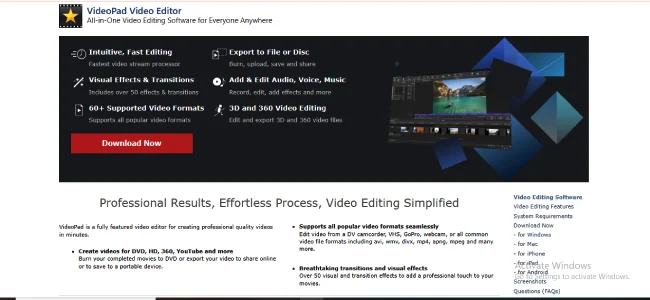
Perfect for Devices: Mac and Windows.
Features:
- The effects and transitions in the video are excellent.
- One can get a 3D stereoscopic conversion of video from 2D.
- Using this software, it is possible to create 360-degree videos.
- It offers the best templates for outros and intros.
- It is the best AI tool for animations in the title text.
- The processing of colour correction and colour grading is quite simple.
- Motion graphics with drag-and-drop editing features are present.
- There is provision for exporting movies in 4K, 2K and HD.
- There is a big collection of video templates. It consists of outtros and intros.
- The user can convert it into a DVD and watch in the television.
- For VR headsets and YouTube, one can start editing 360 videos.
Pros
- The user can edit in 3D mode.
- Video stabilisation is good.
- The platform is perfect for new users.
- Helps in image formatting.
- This is an advanced program for video editing.
- Assists in different video formats.
- Guides in various audio formats.
- It is easy to export and import files in Videopad.
Cons
- The green screen is not effective.
- Multicam tracking is absent.
- It takes time to create a video.
- Motion tracking is not present.
- There is a problem with auto generate feature.
- Disturbing messages in the free mode.
- There are insufficient templates and transitions.
- There are problems with animation.
Rating: Based on Capterra, the rating is 4.3 /5.
Comparison of Flexclip, Blender, OpenShot, Shotcut and VideoPad
| Feature | Flexclip | Openshot | Shotcut | Videopad | Blender |
| Type | Online (Web) | Desktop | Desktop | Desktop | Desktop |
| Learning Curve | Low | Low | Moderate | Low-Moderate | High |
| Best for | Social media ads | Basic Edits | Intermediate | General/Home | 3D/VFX mix |
| AI tools | Yes (Strong) | Basic | Basic | Basic | No |
| 3D Editing | No | 3D (titles) | 360-degree filters | 3D and 360-degree | Fully native |
| Devices | Desktop, laptop, and mobile devices. | Linux, windows and Mac | Linux, Mac and Windows. | Mac and Windows. | Linux, Mac and Windows. |
How to Select The Perfect AI Editing Tool
The reason for choosing these tools is as follows:
Tell your requirements: You have to point out your needs. It can be text-based editing in a video.
Assess the major features: Check the major features like suggestions of content.
Give importance to user-friendliness: Select tools with user-friendly features.
Examine the standard: The tool must have a high production quality.
Explore the integration: Ensure the AI tool can link with the present workflow.
Understand the scalability: You can enhance the volume based on your growth.
Examine the customisation: The right tools present restrictions over AI intensity in comparison to a single-click edit.
Conclusion
Without a watermark, you can use free AI video editing tools, and they are Flexclip, Blender, OpenShot, Shotcut and Videopad. Now, if you are looking for a video editing tool that offers 4K editing, without a watermark, then Shotcut is the right choice. But when you need a video on a social media site quickly, you should use FlexClip. On the other hand, those who are 3D animators interested in cutting footage must select Blender. Finally, if you are a fresher interested in splitting a home-based movie, OpenShot is the right choice. Now, if you check the five tools on the basis of rating, then FlexClip is no.1 as it has been rated 4.5 to 4.7 out of 5 in Capterra.
Thank you for reading the blog. Share the blog with your friends.
FAQs
Is the VideoPad still free?
VideoPad indicates a free software for video editing.
Which editing app is totally free?
The free video editing apps are Kdenlive and iMovie.
Can I use these tools for commercial purposes?
There is no charge for using these tools. One must check the terms of service of these tools.
[…] editing tools must be […]