
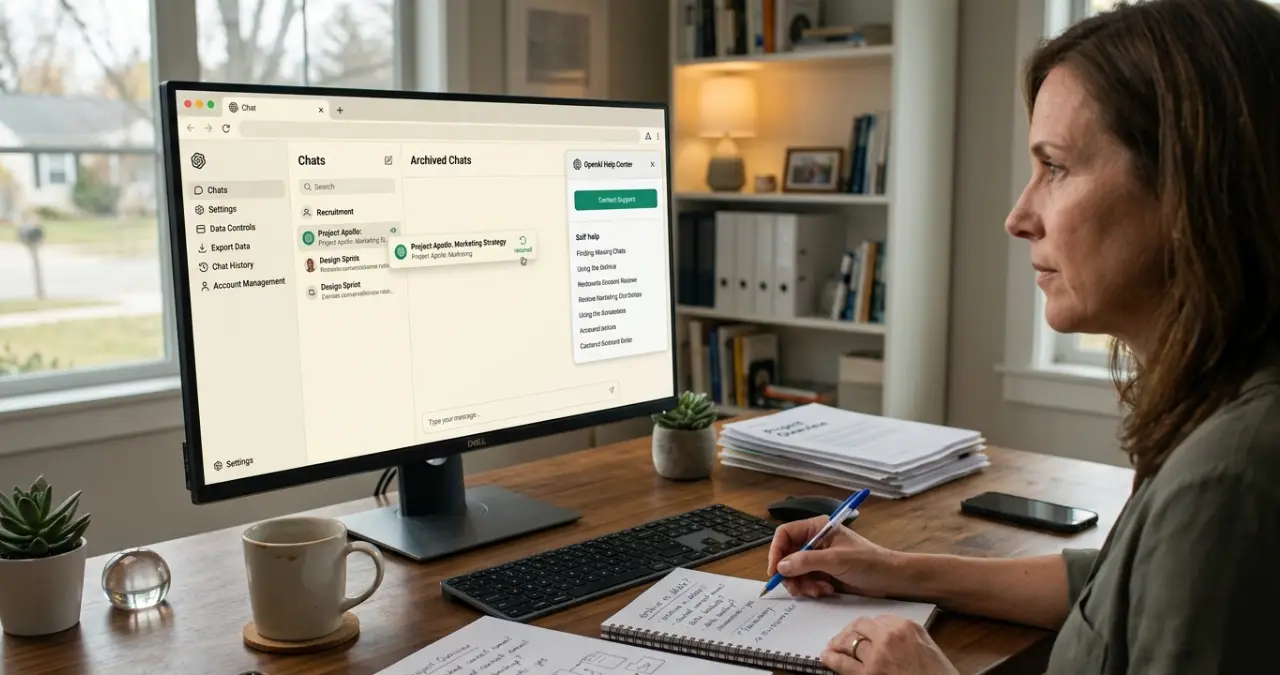

Are you facing a problem retrieving deleted chats in ChatGPT? ChatGPT fails to resolve the deleted chat from its user interface.
But in certain cases, the chat wasn’t truly removed; it was simply archived. This guide shows both situations. When the chat isn’t actually deleted, the recovery methods are archive, needs refresh, and wrong account. When the chats are permanently deleted, the recovery methods are prior export, cached browser data, and contacting OpenAI directly.
In this Ainewsjournal blog, I will explore the procedure to bring back a missing conversation on ChatGPT.
Table of Contents
Top 4 Methods if the Chat Isn’t Actually Deleted
We are going to talk about the methods when ChatGPT is not deleted in the true sense.
1. Archived
- Open and sign in to ChatGPT.
- Click the profile icon and check the settings.
- Check the archived chats and then open them.
- Select Move Back to Chats to keep it in the primary list.
2. Wrong account
- Sign out of the present account of ChatGPT.
- Recall how you originally signed in, and it can be Google, Apple, Microsoft, email, or password.
- Sign in again with the email using the same technique.
- Check the chat history thoroughly.
3. Needs refresh
- You have to refresh the account when the chat is not deleted in the true sense.
- Press F5 or use Ctrl+R to refresh the page.
- Now, you have to sign out and then sign back in again.
- Remove the cache and cookies from your browser.
- Open your ChatGPT again.
4. Chat history toggle
- Click on the profile icon of ChatGPT.
- Go to Settings.
- Find the data controls, which deal with personal privacy.
Top 3 Methods If the Chat Is Permanently Deleted
1. Prior export
- Check the downloaded ZIP file from OpenAI.
- Extract the archive of ChatGPT.
- Explore exported files or files dealing with conversation data.
- Search the exported file using titles, dates, and keywords.
- If you want to export chats at regular intervals, go to Settings> Data controls, then export the data.
- To find a chat that’s gone, you have to save the uploaded file.
- You should have a saved copy of the text or a screenshot.
2. Cached browser data
- The browser cache may not have a recoverable copy of the chat.
- Recent browsers cache website assets, such as scripts, images, and stylesheets.
- You will not find the full history of chat.
3. Contacting OpenAI support directly
- Visit the OpenAI Help Center.
- In reality, when a chat is truly deleted, OpenAI support will not retrieve it.
Conclusion
To know how to bring back a missing conversation on ChatGPT, the message should be removed from the user’s view. So, you cannot get it back officially. We can find the chat again when it is stored in archives instead of being deleted. You can also recover it when you have made a data export or backup locally. You can reach OpenAI support and check cached browser data when the chat is completely removed.
FAQ
Can you find any recycle bin in ChatGPT?
No, you will not get any trash or a recycle bin facility. The process of removal is instant.
Shall I retrieve chats through third-party tools?
There are no trustworthy third-party tools that can reach the private server of OpenAI to find a chat that’s gone.