
Do you know how to enhance Sora AI video quality? OpenAI’s Sora is good at translating text into cinematic videos.
Sora AI is a high-level text-to-video model developed by OpenAI. It permits people to create genuine videos in high-fidelity based on descriptions in still images or simple text.
To obtain the right standard from Sora AI, it’s essential to follow what is responsible for noisy, hazy, or compressed videos, along with the ways to solve them through the right prompts, export configuration, post-processing, and AI upscalers. It involves compression, AI upscalers, and export settings. The effects of lighting, quick motion, and close-up over the face reveal the softness for the first time. Sharing videos on TikTok, YouTube, or Instagram could decrease the clarity due to the additional compression, particularly on big screens.
In this Ainewsjournal article, I am going to share ways of improving the video quality of Sora AI.
Common Sora AI Video Quality Problems
Sora presently assists with various resolutions of output, relying on the user’s plan and chosen settings. Native 4K generation is not present right now, and different workflows depend on AI upscaling after the export, but the authentic 4K creation is absent. The low-resolution videos might appear soft or blurry on big displays.
Noise:
- Noise represents the grains that are spread throughout the footage, similar to an old television.
- Noise is noticeable in low-light scenes. Therefore, the footage appears hazy.
- It has low light, grain, and AI denoising.
Pixelation:
- A clip of 720p resolution will not have sufficient data to show over the big screen.
- As you stretch over the big monitor or 4K display, the fine details become blurry around the edges.
- It offers aggressive compression, upscaling exports in low-resolution, and platform compression.
Motion Artifacts:
- When the movement is really quick, AI-generated videos may produce visual artifacts.
- Among the frames, the AI model may struggle to maintain consistency due to rapid motion.
- AI may struggle to maintain visual consistency in the thread.
- It is quite a common result of action.
- Sometimes, the camera might be whipping rapidly through a particular scene.
- Some examples of motion artifacts are hands, faces, fast camera pans, and explosions.
High compression:
- As you are exporting a video, you will be able to reduce the dimensions of the file.
- When videos are compressed, the fine visual details are lost.
- Compression reduces file size but may also reduce visual quality.
- The video gradually becomes sharp, soft, and finally hazy.
- It is quite bad as you explore the video on YouTube or Instagram.
- The primary reason is that the video compression in the next step is applied to what you have already done.
- YouTube, Instagram, and TikTok recompress uploaded videos.
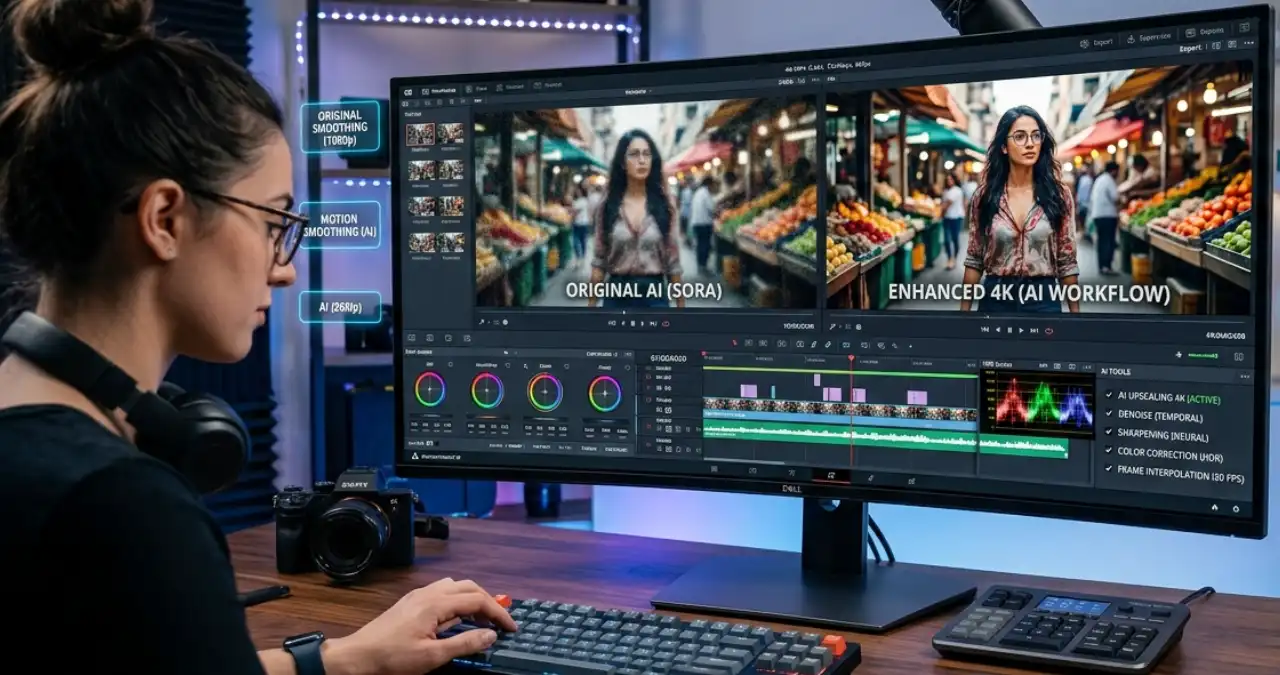
How to Enhance Sora AI Video Quality in 4K?
Step 1
Upscale:
- Choose the website based on the requirements of the workflow.
- It can be desktop software, a web-based platform, or a mobile app.
- Topaz video is good for desktop software.
- Vmake AI is great for a web-based platform.
- UpRes by Mixcord is great for Android and iOS.
Step 2
Denoise:
- Sora AI natively applies the diffusion system, where it launches noisy patches of space-time.
- Then it denoises those things to create the ultimate video.
- It offers rendered clips that will show the artifacts of compression and flickering.
- It might also create an ambient grain effect.
- To control the grain and residual noise, Sora AI videos apply third-party AI video tools for improvement and upscaling.
Step 3
Sharpen:
- Improve and reduce the Sora AI video production with the application of unique AI upscalers, e.g., Topaz Labs or browser-related tools like Media.io.
- Besides, the tools improve the resolution to a great extent by up to 4K and decrease the artefacts and shimmering.
- In addition, it improves frame rates in the absence of stretched pixels.
- Frame interpolation, batch processing, and reducing AI visual artifacts are different ways to sharpen a video.
Step 4
Color correction:
- Color correction in Sora AI explains the color palette through the text prompt before creation.
- It improves the production afterwards with the help of normal editing software like Premiere Pro.
- In post-production, it includes color correction, resolving tints, and shot matching.
Step 5
Frame interpolation:
- Sora-created videos are present at around 24 to 30 FPS, relying on creation settings along with the playback.
- But the users could not choose freely among frame rates at the time of generation.
- In addition, it shows visual coherence.
- Sora did not permit natively to modify the exported frame rate or manually carving out intermediate frame interpolation.
Step 6
Final export:
- To finalize the export using the Sora AI video platform, choose the ideal format.
- Then keep that file on your device, such as a desktop or mobile application.
- On the desktop, the user has to click over three dot menu in the lower left corner.
- Choose the Download option to save the file as MP4.
- In the mobile app, the user should use three dots in the video player.
- Choose Download to export this file straightaway to the camera roll.
Best Export Settings for High-Quality Sora Videos
A remarkable export configuration will enhance the appearance of a Sora video. At the time of export, it is important to apply certain settings.
Best Export Settings for Maximum Quality
Resolution:
- High-resolution videos show every minute detail to the viewer.
- You can see them after uploading or playing.
- You need to export at the top resolution present in your plan for Sora.
Frame Rate:
- Sora has the power to export 30 or 24 FPS.
- If there is footage or action with a lot of activities, 30 FPS is the best.
- 24 FPS is ideal for a cinematic effect. You might be dividing several Sora clips.
- If you mix these clips, it will develop irregularities.
- The suitable frame rate is 60 FPS.
- For rendering or exporting video generations in Sora, the right frame rate depends on the perfect platform and the best aesthetic.
Bitrate:
- The export settings in Sora show bitrate, which deals with the volume of data organized every second in a video.
- It is generally calculated in Megabits every second.
- It regulates the final file and visual quality.
- High bitrate holds a lot of complex details.
- It deals with quick motion rather than being blocky, but the outcome is present in a big file.
- The recommended bitrate ranges between 8 and 15 MBPS.
Container:
- Sora is responsible for exporting videos in the MP4 format.
- It is globally compatible through the H.264 video codec.
- It is a container that guarantees the generated clips are prepared to upload straightaway to social media.
- In other words, it falls within the timeline of editing in the absence of extra format conversions.
Audio:
Relies on the type of Sora; created clips may not consist of AI-assisted audio.
Color Space:
- The majority of the exported videos match the normal color spaces generally applied in the editing of high-definition video.
- While exporting from Sora, the color space settings are not complicated.
- It configures in rendering for the first time.
MP4 vs MOV
- As you explore Sora AI, you will find that MP4 (H.264) represents the file format by default.
- It will not occupy a lot of area and it is capable of playing any video.
- It is ideal for creators who are planning to be involved in heavy editing along with the colour work.
- There are visual effects later.
- So, when you post on TikTok, YouTube, or Instagram, you have to use the MP4 format.
Recommended Bitrate Settings
Bitrate controls the data kept in a video. When we find that it is quite low, the image has lost its sharpness. It shows blocky compression in some zones where there is movement.
As Sora did not reveal manual bitrate regulations, the exported bitrate relies on the generated file. At the time of re-exporting from software editing, a bitrate between 8 and 15 Mbps is referred to for uploads of 1080p.
Exports in Landscape vs Vertical Video
One can fix the aspect ratio in Sora AI before video creation. On YouTube, the horizontal format is 16:9. The user must choose 1080 x 1920 vertical, and it is meant for TikTok at 30 FPS. Sora has been downloading videos in the form of MP4 files, perfect for the websites.
This is also valid for YouTube Shorts and Instagram Reels. The quality of the video improves when we take care of the size. The creator can crop it afterwards, and it is really worth remembering.
The actual resolutions are as follows:
- 3840×2160
- 1920×1080
- 1080×1920
- 2160×3840
Why Sora Videos Look Blurry or Low Quality
Sora videos do not have quality for the following reasons:
- Low source resolution: The resolution of these videos is quite low, and for this reason, they look hazy.
- Over-detailed prompts: The prompts are packed with information.
- Camera motion: The motion of the camera is not perfect, and this might be another factor behind poor quality.
- Less lighting: The quality of the video will be poor when the video is shot in less light.
- Heavy compression: Due to excessive compression, the video does not have good quality.
- Export settings: When the export settings are not right, the video might be poor in quality.
Prompt Engineering Tips To Improve Sora AI Video Quality
Instead of writing a prompt for video creation like this:
A beautiful woman walking
You have to write the prompt in detail:
A medium shot of a woman in a cinematic way as she walks through the golden-hour lighting in the soft shadows with a shallow depth of field, shot using a 35mm lens in genuine skin texture with a slow camera dolly.
Best AI Video Upscaling Tools
| Tool | Use |
| Topaz video AI | Best overall |
| Wink | Beginner |
| CapCut AI Upscaler | Social Media |
| HitPaw Video Enhancer | Easy |
| AVCLabs | AI Enhancement |
Post-Processing Tips to Enhance Sora AI Video Quality
- Color grading: Color grading the Sora AI video will change the slightly flat and raw AI outputs to a smooth cinematic masterpiece.
- Sharpening: To sharpen and improve the videos of Sora AI, apply AI upscalers, e.g. Topaz Video AI, to maintain the detail. For the external editors like Premiere Pro, use Unsharp Mask, whose strength ranges between 20 and 40 with a radius of 1 to 1.5. You need to use the subtle film grain to cover AI artefacts, along with a color grade to create the footage’s pop.
- Contrast: To improve the contrast along with the visual impression of the Sora footage, you must apply post-processing techniques like direct AI-prompting along with external traditional editing. You will be able to avoid flatness, which is present in the raw AI creations.
- Noise reduction: Noise within the AI-guided video indicates a top-frequency visual grain, with a fuzzy surface. They are present across the diffusion models. To reduce this noise, we have to give importance to unique AI upscalers rather than simple blur filters. Use the temporal denoising for a flow in moving pixels. It is a good idea to keep the fine details by improving the post-rendering.
- HDR: To get a high-quality HDR or High Dynamic Range appearance in Sora, the system depends on writing prompts for an enriching range from the first time. It adds true post-processing in the external editors e.g. Adobe Premiere.
- Lens blur: Improve the video edits through the right Camera Lens Blur effects in comparison to the ordinary Gaussian blurs. It is a good idea to animate the depth of field through keyframed masks.
It can also be AI depth maps for removing the subjects in a natural way. There is a tweak to the bokeh settings, like the shape of an aperture along with diffraction, to get the cinematic or photorealistic appearance.
Common Mistakes That Reduce Sora Video Quality
The general errors that decrease the video quality in Sora are as follows:
- Excessive prompts: When there are too many prompts, it might ruin the quality of the video.
- Fast motion: As the movement is really quick, viewers will not be able to watch the video properly.
- Multiple subjects: If there are several subjects, it will decline the quality of the video.
- Low lighting: When the lighting is low, it will not create a high-quality video.
- Wrong aspect ratio: As the aspect ratio is not right, the standard of the video declines considerably.
- Low bitrate: With the decline in bitrate, the viewer is unable to see the video properly.
Best Practices for High-Quality Sora Videos
- Create videos using the perfect lighting rather than depending on post-processing.
- Bypass too much camera movement as the AI models face problems keeping frame regularity.
- Apply AI upscaling after finishing the editing to restore the greatest detail.
Best Workflow to Enhance Sora AI Video Quality
The perfect workflow is as follows:
- Create the best quality clip
- Utilize cinematic prompts
- Export
- Upscale
- Denoise
- Sharpen
- Color grade
- Export final 4K
Problem and Solution to Enhance Sora AI Video Quality
| Problem | Solution |
| Blurry video | AI upscaler |
| Noise | AI denoiser |
| Motion Artifacts | Simpler prompts |
| Pixelation | High export resolution |
| Compression | High Bitrate in re-export |
Conclusion
To know how to enhance Sora AI video quality, you need to create high-quality source clips, apply detailed prompts, export correctly, upscale using AI, and use denoising. You can improve your publishing platform. We have talked about the mistakes that decrease the quality of video in Sora, like excessive prompts, fast motion, and multiple subjects. We have discussed the post-processing tips like color grading, contrast, noise reduction, etc. There is an explanation of the top export settings, like resolution, code, bitrate, and others.
FAQ
How to improve the quality of Sora AI video to 4K?
Use the Sora clip within Video Enhancer of Wink and select AI UHD or UHD. You have to select the scene that matches the footage and then allow it to work. Wink helps in improving footage from a low resolution to a 4K version, completely across the browser instantly.
How long does it take to enhance Sora AI video quality for free?
The time for processing a video differs, and it depends on the size of the file, along with the resolution. On the other hand, the standard videos finish within a few minutes. Brief clips of Sora’s work are really quicker than the standard ones.
What free tools work best to enhance Sora AI video quality?
A wink indicates the right choice. It identifies video features instantly. Then it uses corrections in the absence of any type of software installation. You have the power to improve them to 4K and then begin processing the content.
Can you improve the standard of the previous videos of Sora AI?
Yes. Wink consists of an old restoration mode in video, which uses a unique algorithm to get back the detailed information, along with clarity from an old video.
How to enhance Sora AI video quality in native 4K videos?
No, Sora is unable to create native 4K videos. Its highest native output resolution has a limit of 1080p or Full HD. For the top clarity across big screens, you need to apply the tools of a third party to improve the production.
Does prompt quality affect resolution?
Yes, the prompts don’t transform the output resolution directly, but it affects the perceived sharpness, lighting, detail, and total visual quality.
Which AI upscaler is best?
The perfect AI image upscaler relies on the requirements and cost. Topaz Video AI is good for desktop, Wink is really great for simplicity, and CapCut is perfect for social media.
Can blurry videos be fixed?
Yes, we can definitely solve the blurry videos. We are unable to resolve the issue of out-of-focus shots. The creator can improve the soft details and delete the compression artifacts.
Does YouTube reduce quality?
YouTube will re-encode uploaded videos, which will reduce visual quality compared to the original file, particularly at low resolutions or low bitrates.